3 capture modes
Region, window, or fullscreen capture with global hotkeys and fast response.
Freeshot combines capture, editing, and export in one flow. No app switching, no overhead.
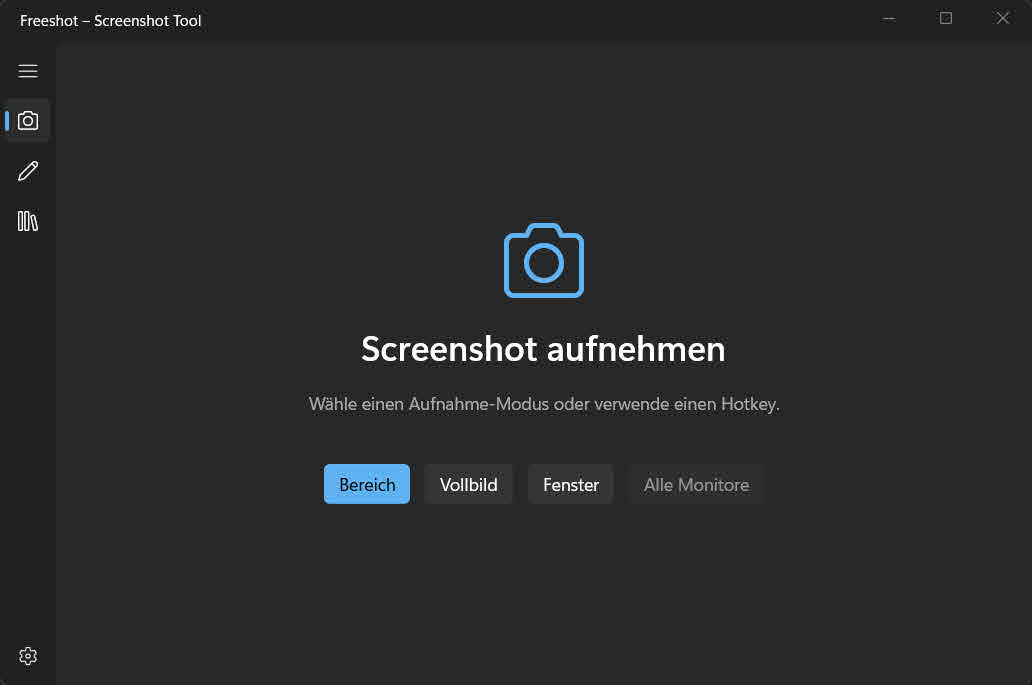
Region, window, or fullscreen capture with global hotkeys and fast response.
Arrows, text, shapes, highlighter, and redaction without external tools.
Library, quick reopen, and consistent export quality for teams.
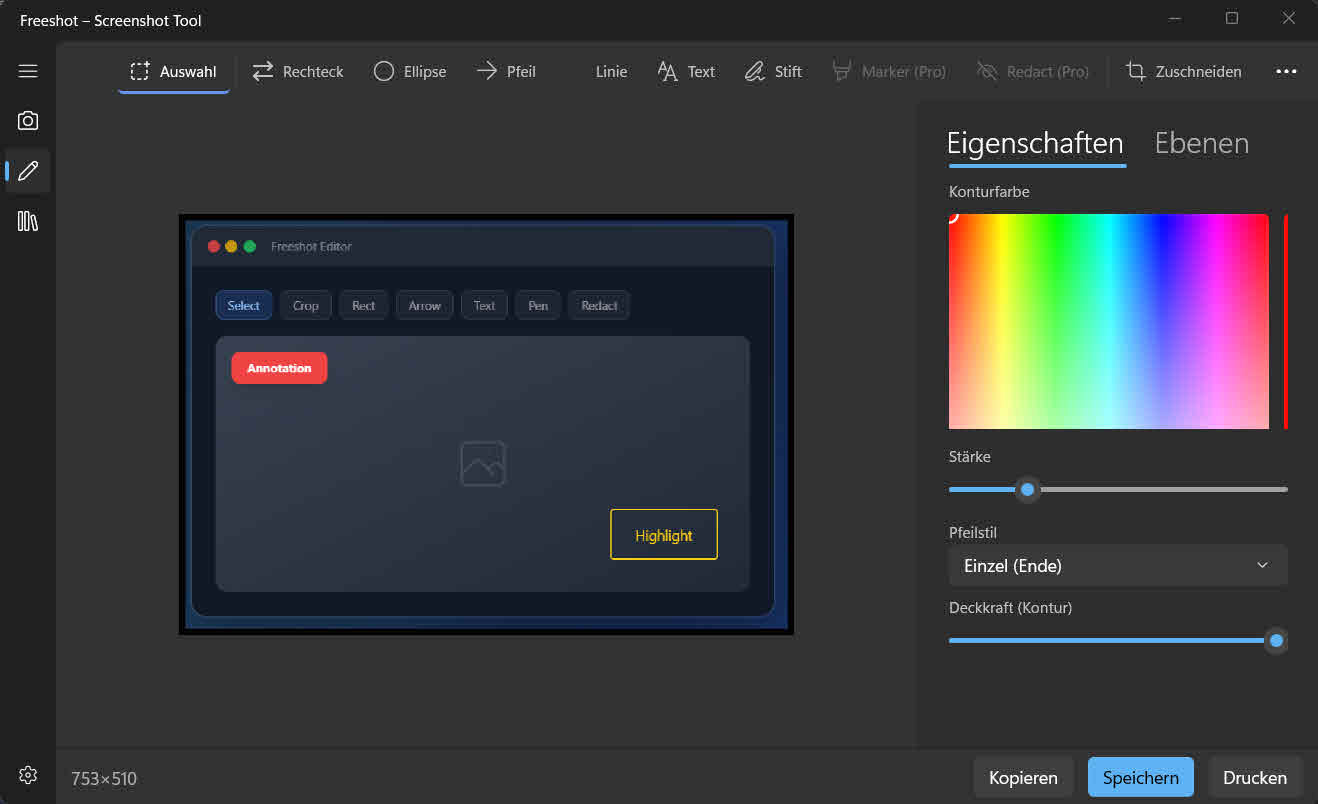
A modern screenshot tool for Windows 11 is especially valuable for teams that communicate visually every day. In support, QA, product development, and training, simple snips are often not enough. Capture, annotation, saving, and sharing must work as one fast sequence.
This is where Freeshot stands out: it combines fast capture with an integrated editor, a library, and clear export workflows. That reduces follow-up questions because important context is visible directly in the screenshot. It saves time and improves cross-team collaboration.
Windows 11 users expect modern UX, clear interfaces, and quick reactions. Freeshot is designed for these expectations: fast capture actions, precise annotations, and consistent export output. A simple screenshot becomes clear communication.
Windows 11 comes with its own shortcuts. They are enough as long as an image is all you need. The moment something has to be marked up, labelled or found again later, the step after the capture is missing — and that is where Freeshot starts.
| Shortcut | What happens |
|---|---|
| Win + Umschalt + S | Windows selection across the screen, result goes to the clipboard. |
| Win + Druck | Full screen straight to a file under Pictures\Screenshots. |
| Alt + Druck | The active window only, to the clipboard. |
| Strg + Umschalt + 4 | Freeshot: capture a region and open it in the editor right away. |
| Strg + Umschalt + 5 | Freeshot: capture a single window. |
| Druck | Freeshot: capture the full screen. |
The three Freeshot shortcuts are the defaults and can be changed.
Freeshot is free to use. This table says plainly what the free version does and what needs a license — so nobody finds out after installing that something is missing.
| Feature | Free | Pro |
|---|---|---|
| Capture region, full screen, window | ✓ | ✓ |
| Editor with arrow, line, rectangle, ellipse, text, pen | ✓ | ✓ |
| Cropping | ✓ | ✓ |
| Save as PNG, JPEG, BMP | ✓ | ✓ |
| Signed automatic updates | ✓ | ✓ |
| Redaction and highlighter | – | ✓ |
| Library with search across all captures | ✓ | ✓ |
| All monitors in one image | – | ✓ |
| WebP, TIFF and further formats, print preview, custom shortcuts | ✓ | ✓ |
For daily work you need region capture, window capture, and fullscreen. This helps you grab exactly the right context fast.
Without an editor, you switch between multiple apps. A built-in editor lets you annotate right after capture and saves valuable time per task.
Yes. Freeshot supports clear visual communication for support, QA, documentation, and internal training.
Install Freeshot in seconds and start your workflow immediately.